Invoice Management (Sales)
Invoice management in Hbl's simpleBillBook allows you to create sales invoices, track customer transactions, and manage receivables. This guide covers creating sales invoices, configuring invoice settings, and managing the complete sales cycle.
Overview of Sales Invoices
Sales invoices are formal documents issued to customers for goods sold or services rendered. They serve as:
- Legal records of sale
- Payment requests
- Tax documentation
- Inventory reduction triggers
Viewing Sales Invoices
To view all sales invoices:
- Navigate to Manage Sales → Invoice from the main sidebar
- You'll see a table listing all sales transactions
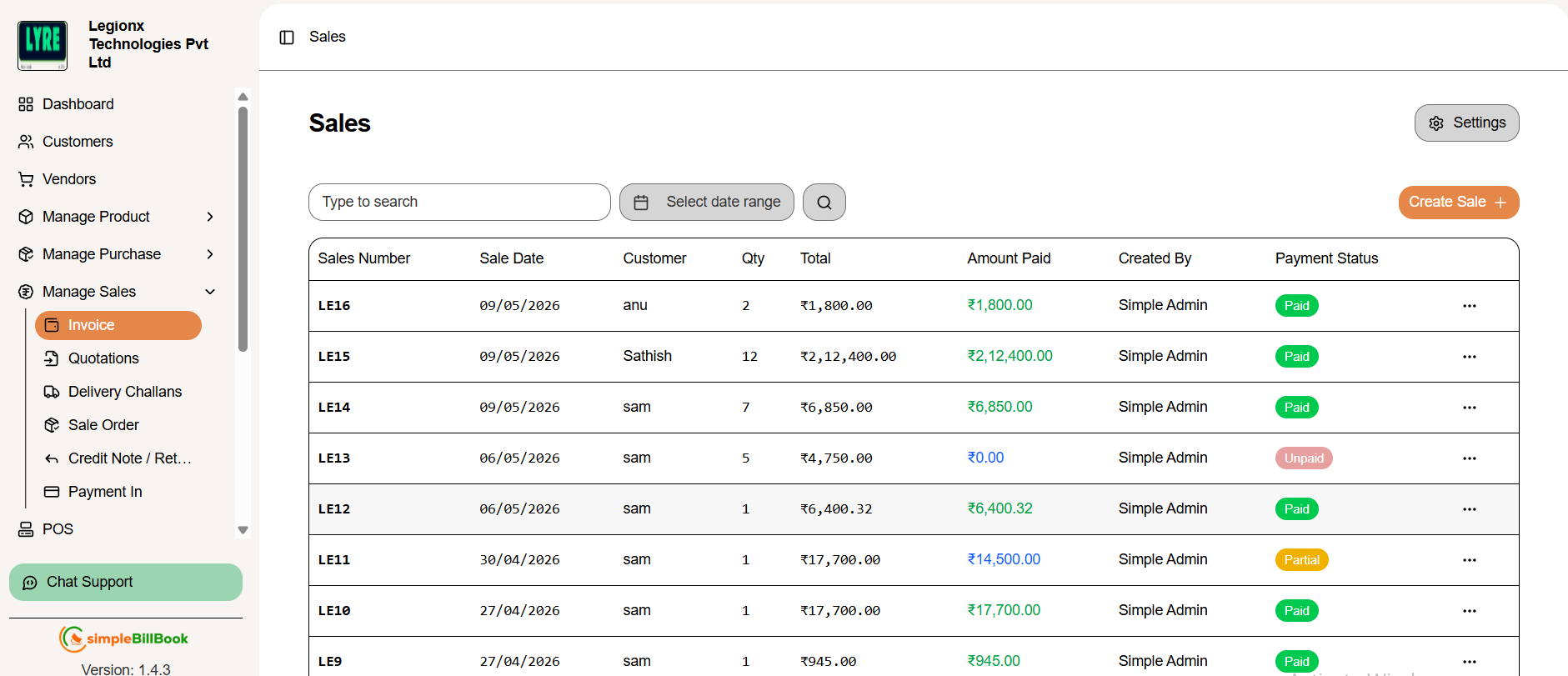 Figure 1: Sales invoices list showing all transactions with payment status
Sales Invoice Table Columns:
Transaction Details:
- Sales Number: Unique invoice number (e.g., HBL1, HBL2)
- Sale Date: Date of sale
- Customer: Customer name
- Qty: Total quantity of items sold
Financial Information:
- Total: Total invoice amount
- Amount Paid: Amount received from customer
- Payment Status: Paid/Unpaid/Partial status
- Created By: User who created the invoice
Search and Navigation:
- Type to search: Search by sales number, customer, or date
- Select date range: Filter sales records by selected dates
- Pagination: Navigate through invoice pages
- Status Filters: Filter by payment status if available
Creating a New Sales Invoice
Step 1: Access Invoice Creation
From the sales invoices page, click Create Sale button.
Step 2: Fill Invoice Details
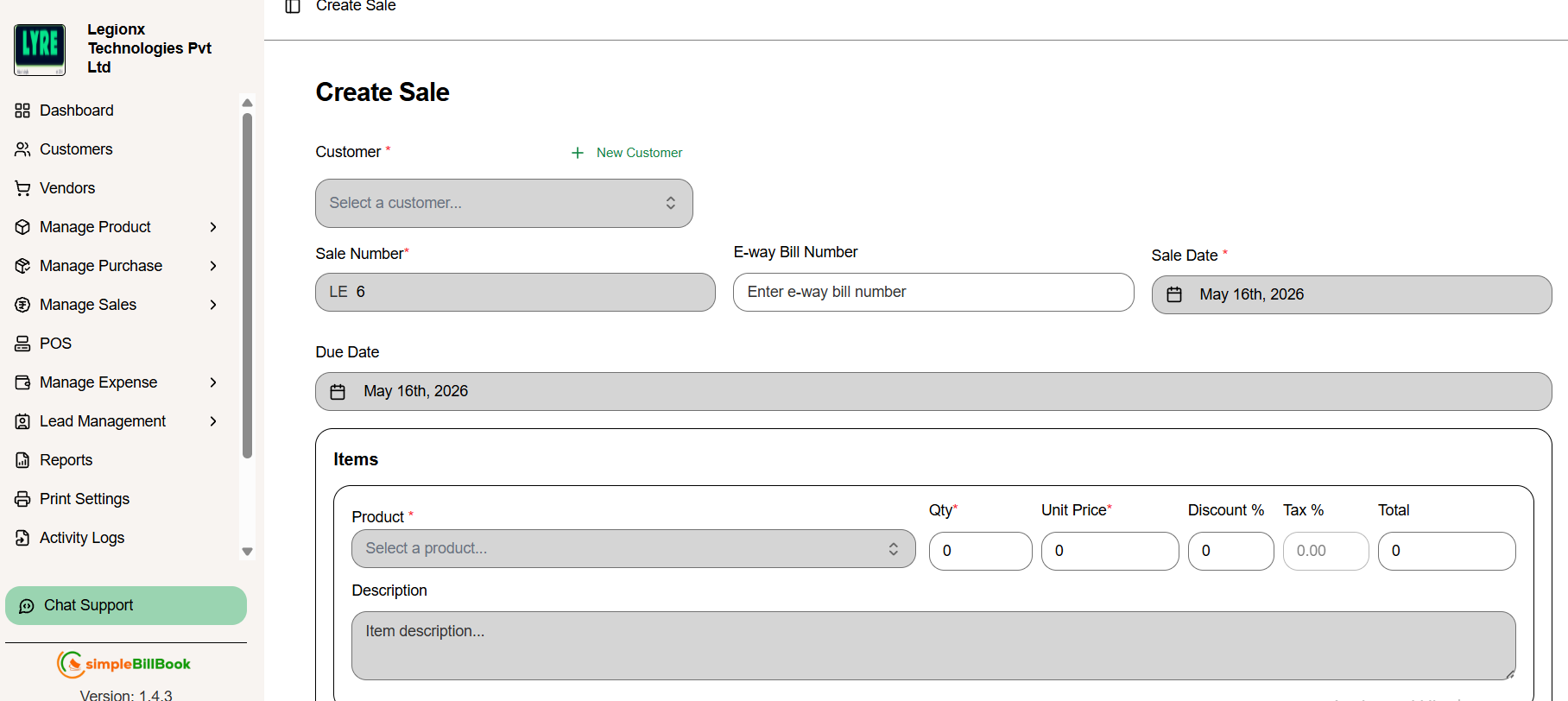 Figure 2: Form for creating new sales invoices
Header Information:
- Customer*: Select customer from dropdown (required)
- Sale Number: Auto-generated based on settings (e.g., HBL 2)
- E-way Bill Number: For GST compliance (if applicable)
Item Selection:
- Click + Add Item to add products to the invoice
- Select Product from dropdown
- Enter quantity, unit price, and other details:
- Description: Add additional item or sales information
- Notes: Used to add additional comments or important details related to the invoice.
Item Columns:
- Product: Item name from inventory
- Qty*: Quantity sold (required)
- Unit Price*: Selling price per unit (required)
- Discount %: Percentage discount applied
- Tax %: Applicable tax rate
- Total: Line item total (auto-calculated)
Payment Information:
- Payment Method: Select payment type (Cash, Card, Bank Transfer, etc.)
- Amount Paid: Enter amount received at time of sale
- Payment Status: Auto-updates based on amount paid vs. total
Tax Calculations:
- VAT Rate: Value Added Tax rate
- VAT Amount: Calculated tax amount
- VAT Due Date: Tax payment deadline
- Total with Tax: Final amount including taxes
Add Additional Charge
1. Title – “Add Additional Charge” Displays the purpose of the popup and informs the user about the action.
2. Label Field Used to enter the charge name (e.g., Delivery Charges, Packing Charges).
3 Amount Field (₹) Allows users to enter the additional charge amount in Indian Rupees.
4. Cancel Button Closes the popup without saving any entered information.
5. Add Charge Button Validates inputs and adds the entered charge to the bill/order summary.
Step 3: Save Invoice
- Save Invoice: Save and generate printable invoice
- Save and Send Email: Save and email to customer
- Cancel: Discard the invoice
Invoice Actions and Management
Available Invoice Actions:
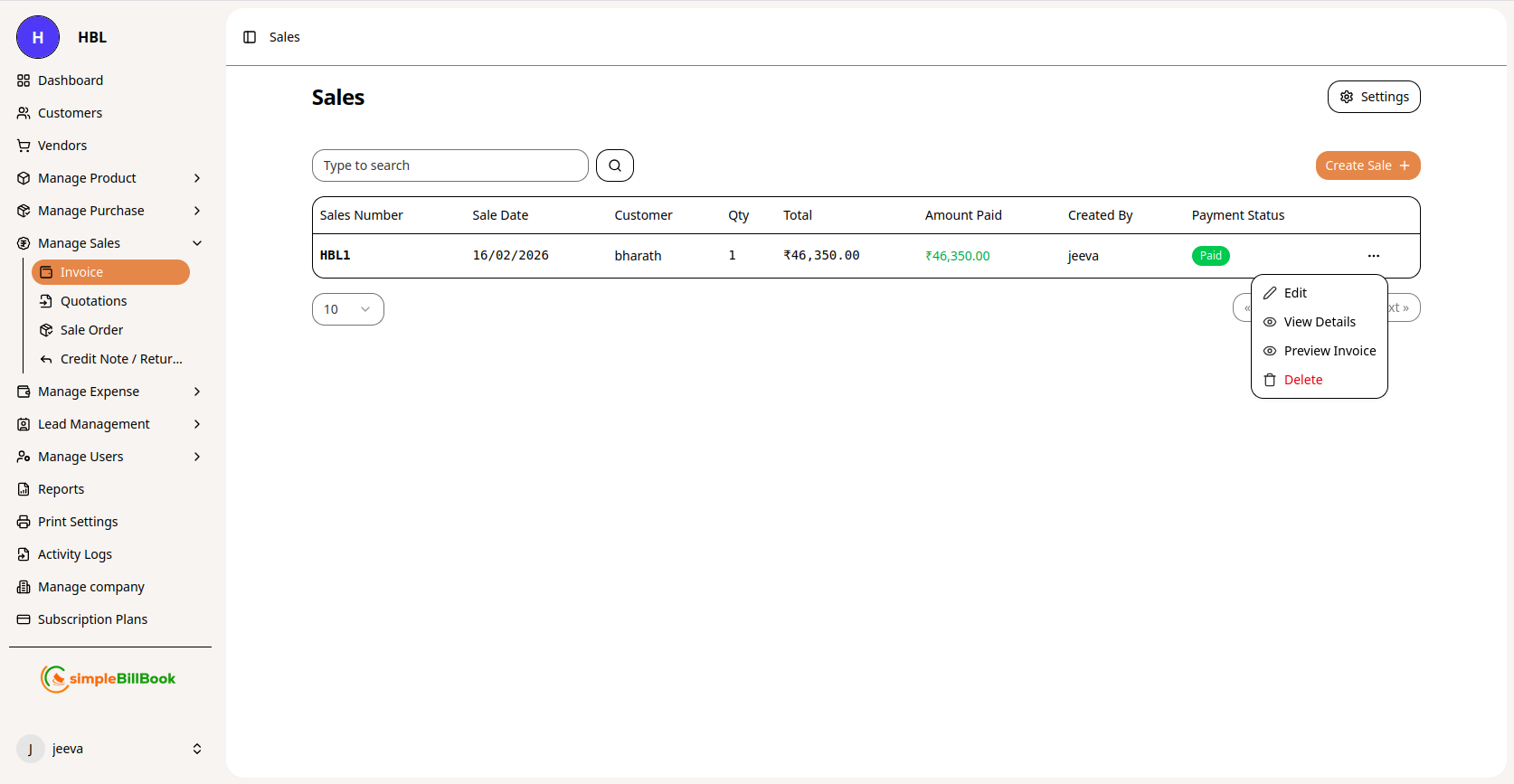 Figure 3: Sales invoice with available action buttons
Common Actions on Invoices:
- View: See complete invoice details
- Edit: Modify invoice (if not finalized)
- Print: Generate printable version
- Email: Send to customer electronically
- Duplicate: Create similar invoice quickly
- Void/Cancel: Mark as cancelled
- Payment: Record additional payments
Payment Processing:
- Locate invoice in list
- Click Payment or similar action
- Enter payment amount and method
- Update payment status
Invoice Settings Configuration
Accessing Invoice Settings
From the sales management section, access settings via gear icon or Settings menu.
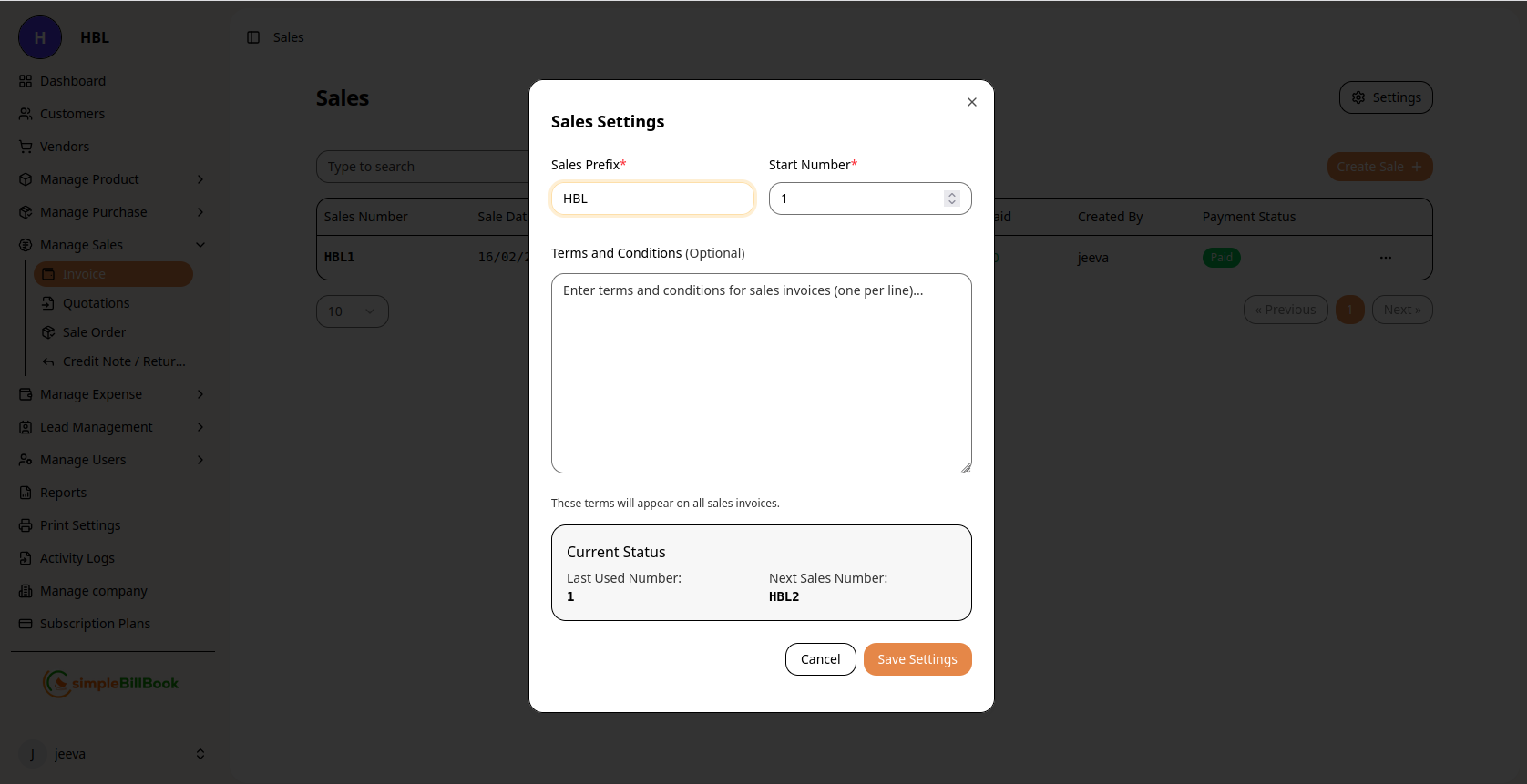 Figure 4: Invoice numbering and configuration settings
Configurable Settings:
Invoice Numbering:
- Sales Prefix*: Custom prefix for invoice numbers (default: HBL)
- Start Number*: Beginning sequence number (required)
- Last Used Number: System tracks last generated number
- Next Sales Number: Preview of next auto-generated number
Terms and Conditions:
- Default Terms: Standard terms for all invoices
- Payment Terms: Default payment conditions (Net 30, Due on receipt, etc.)
- Return Policy: Standard return conditions
Sales Custom Fields Settings
- Custom Field 1: Configure additional field label for sales invoice
- Custom Field 2: Add another custom reference field if needed
- Custom Field 3: Create extra invoice field for business requirements
Tax Configuration:
- Default Tax Rate: Standard tax rate for items
- Tax Calculations: Configure tax inclusion/exclusion
- Tax Identification: Company tax details
Saving Settings:
- Click Save Settings to apply changes
- Use Cancel to discard modifications
- Settings affect all future invoices
Sales Invoice Workflow
Complete Sales Process:
1. Preparation Stage:
- Ensure customer exists in system
- Verify product availability
- Check pricing and discounts
2. Invoice Creation:
- Select customer
- Add items with quantities and prices
- Apply discounts if applicable
- Calculate taxes
3. Payment Processing:
- Record payment method
- Enter amount paid
- Generate payment receipt
- Update inventory stock
4. Documentation:
- Print or email invoice
- File copy for records
- Update customer account
5. Post-Sale:
- Track outstanding payments
- Send payment reminders
- Handle returns if needed
- Update sales reports
Types of Sales Transactions
1. Cash Sales
- Immediate payment received
- Inventory updates immediately
- Simple transaction flow
2. Credit Sales
- Payment deferred to future date
- Customer account charged
- Payment terms apply
3. Partial Payment Sales
- Some amount paid at time of sale
- Balance recorded as receivable
- Follow-up required for balance
4. Proforma Invoices
- Preliminary invoices for quotation
- No inventory impact
- Can convert to actual invoice
Best Practices for Invoice Management
Creating Accurate Invoices:
- Complete Customer Information: Ensure all customer details are correct
- Accurate Item Selection: Double-check products and quantities
- Correct Pricing: Verify selling prices and discounts
- Tax Compliance: Ensure proper tax calculations
- Clear Terms: State payment terms clearly
Payment Management:
- Immediate Recording: Record payments as soon as received
- Receipt Issuance: Provide receipts for all payments
- Outstanding Tracking: Monitor unpaid invoices regularly
- Payment Reminders: Send timely payment reminders
Customer Communication:
- Prompt Invoicing: Send invoices immediately after sale
- Clear Documentation: Ensure invoices are easy to understand
- Professional Format: Use professional invoice templates
- Multiple Channels: Offer print and electronic options
Record Keeping:
- Organized Filing: Maintain organized invoice records
- Backup Systems: Keep digital and physical backups
- Audit Trail: Maintain complete transaction history
- Regular Reconciliation: Reconcile sales with bank deposits
Integration with Other Modules
Customer Management:
- Sales History: Tracks all transactions with each customer
- Credit Limits: Monitors customer credit utilization
- Payment Patterns: Analyzes customer payment behavior
Inventory Management:
- Stock Reduction: Inventory automatically decreases on sale
- Stock Alerts: Can trigger low stock warnings
- Sales Analysis: Identifies fast-moving vs. slow-moving items
Financial Accounting:
- Revenue Recording: Sales recorded as income
- Receivable Tracking: Monitors outstanding customer balances
- Tax Reporting: Captures output tax liabilities
Reporting and Analytics:
- Sales Reports: Daily, weekly, monthly sales summaries
- Customer Analysis: Sales by customer category
- Product Performance: Best-selling items analysis
- Payment Collection: Collection efficiency metrics
Common Scenarios and Solutions
Scenario 1: Partial Delivery
Solution:
- Create invoice for delivered items only
- Note pending items for future delivery
- Create separate invoice when remaining items delivered
Scenario 2: Price Negotiation After Sale
Solution:
- Create credit note for price difference
- Or issue refund if already paid
- Document reason for adjustment
Scenario 3: Customer Requests Proforma
Solution:
- Create proforma invoice with estimated amounts
- Mark clearly as "Proforma" or "Quotation"
- Convert to actual invoice when order confirmed
Scenario 4: Bulk Order with Discount
Solution:
- Apply percentage discount to entire invoice
- Or apply fixed amount discount
- Ensure discount calculation is clear on invoice
Scenario 5: Tax-Exempt Customer
Solution:
- Verify customer tax exemption certificate
- Set tax rate to 0% for that customer
- Document exemption details
Reports and Analytics
Available Sales Reports:
- Sales Summary: Total sales by period
- Outstanding Invoices: All unpaid invoices aging report
- Customer Statements: Detailed statements per customer
- Product Sales: Sales performance by product
- Tax Reports: Sales tax collected and payable
- Collection Efficiency: Payment collection performance
Key Metrics to Monitor:
- Days Sales Outstanding (DSO): Average collection period
- Sales Growth: Month-over-month sales increase
- Collection Rate: Percentage of invoices paid on time
- Average Invoice Value: Average sale amount
- Customer Retention: Repeat customer sales